- All SmartCourts – Backend Support
1. Network
1.1. Make sure all connected as should and according to the relevant Layout _______ ?????
1.2. Are Cameras are on a separate VLAN? ___YES____ all cameras are connect to own/separate switch.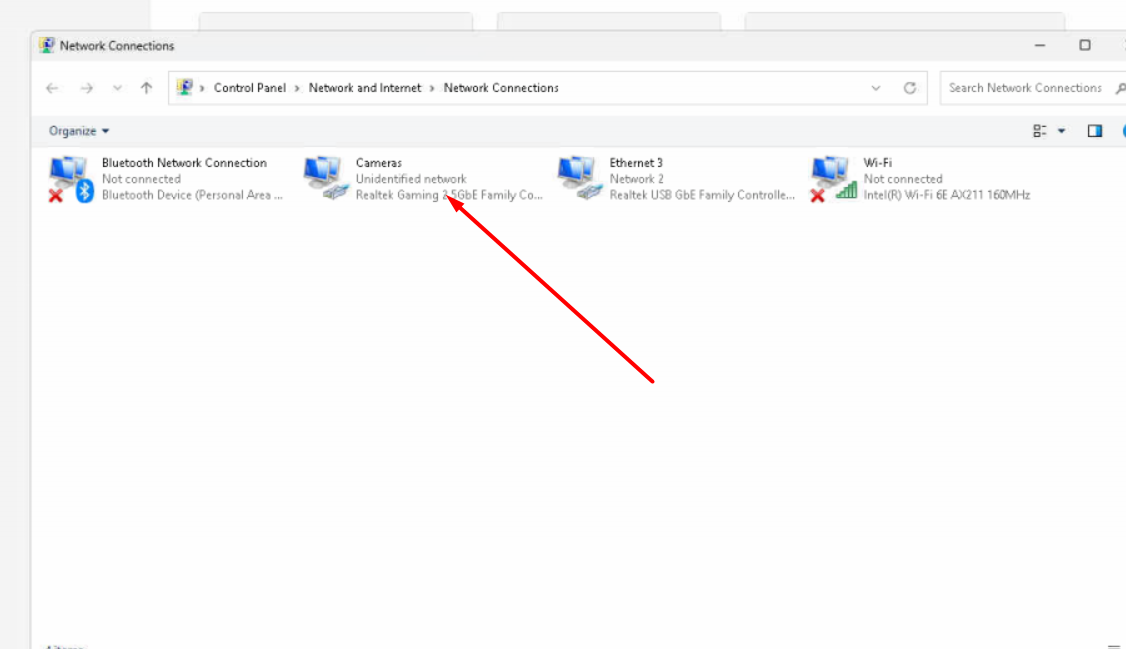
1.3. All Cameras have either static IP’s or DHCP reservations (Static\DHCP) – Mark the answer with marker ___Static____
In this case, checked box is DHCP, unchecked box is Static.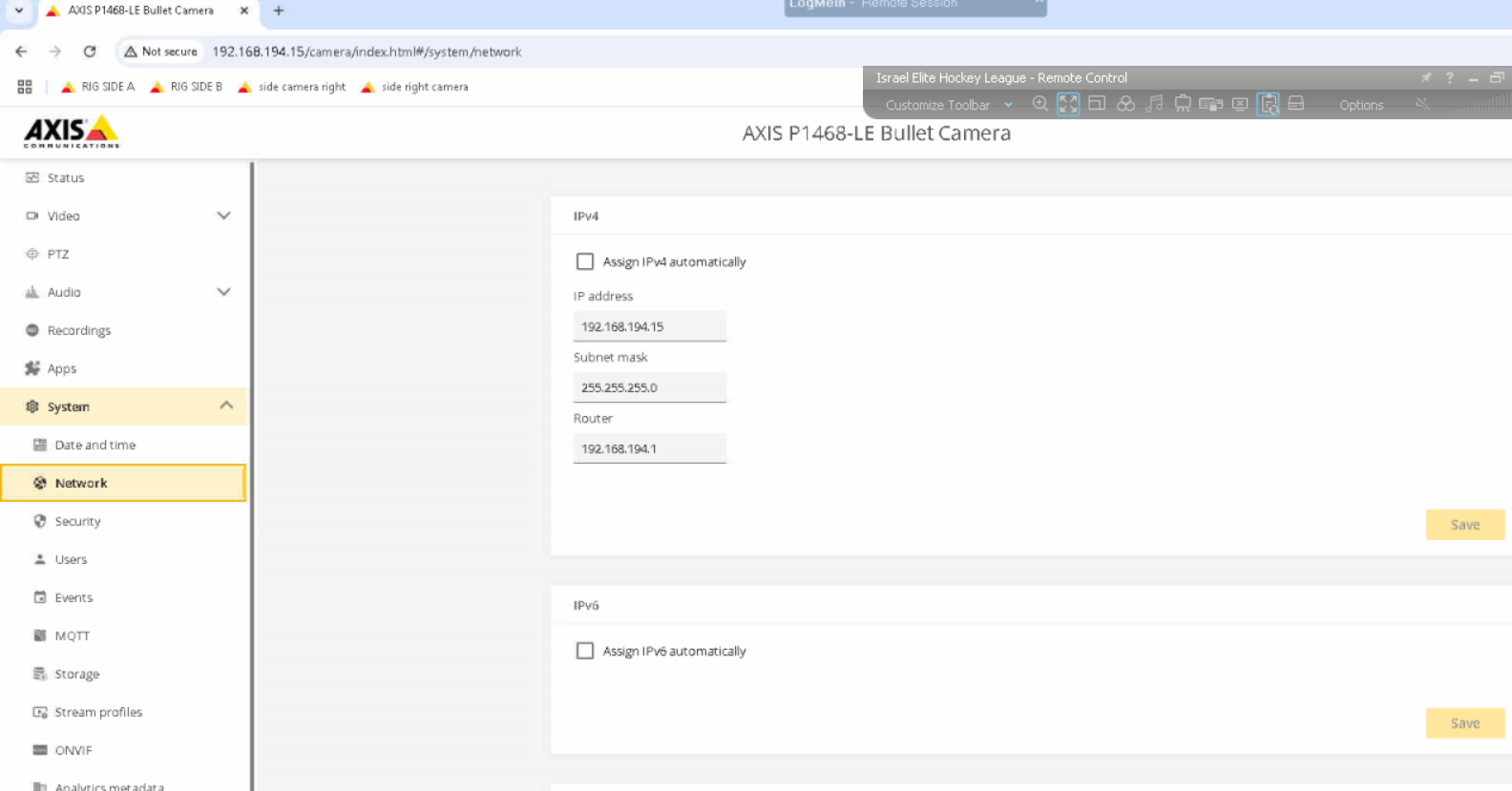
1.4. Both Server LAN interfaces are connected to the switch ______ ????
1.5. All LAN interfaces have one IP set on them ___YES___
No additional IPv4s - one IP for each network. Delete the 2nd IPs if needed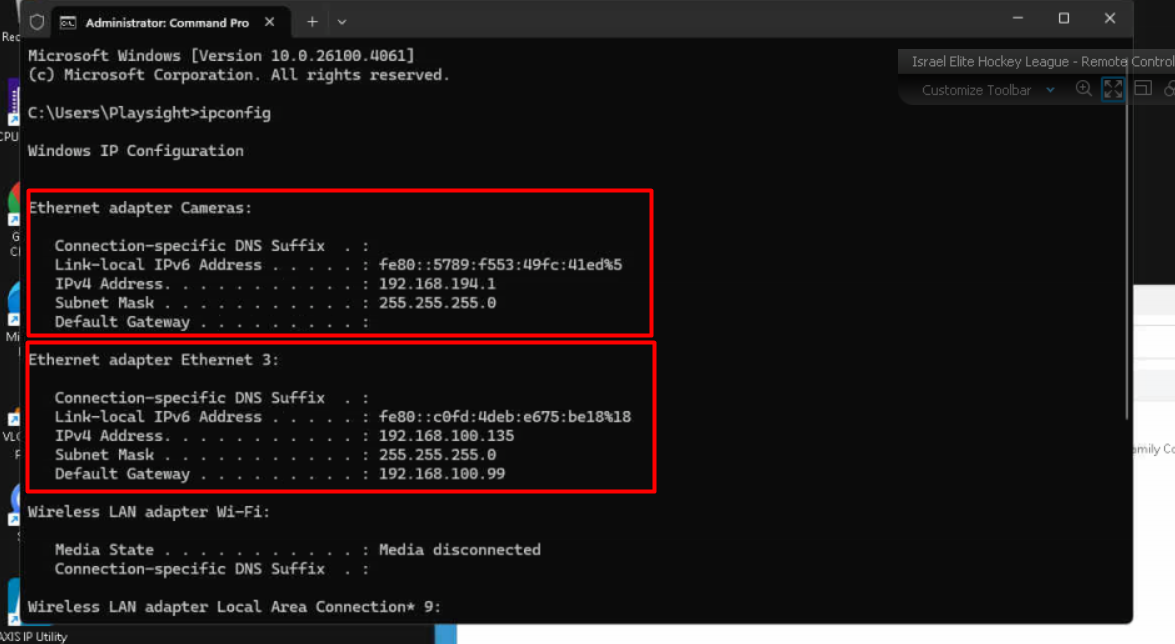
1.6. Internet IP is set to DHCP (unless requested differently by the local IT) ___YES___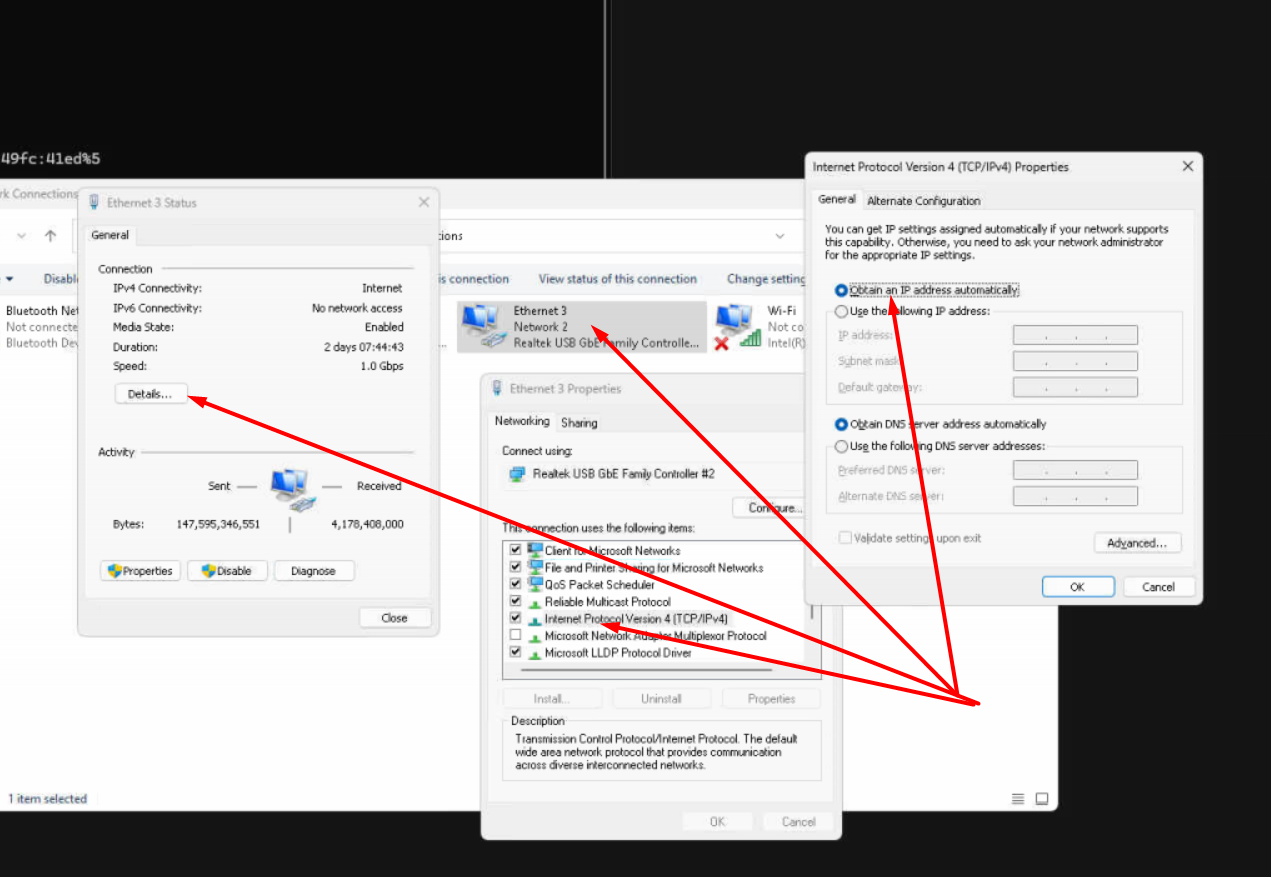
2. Cameras
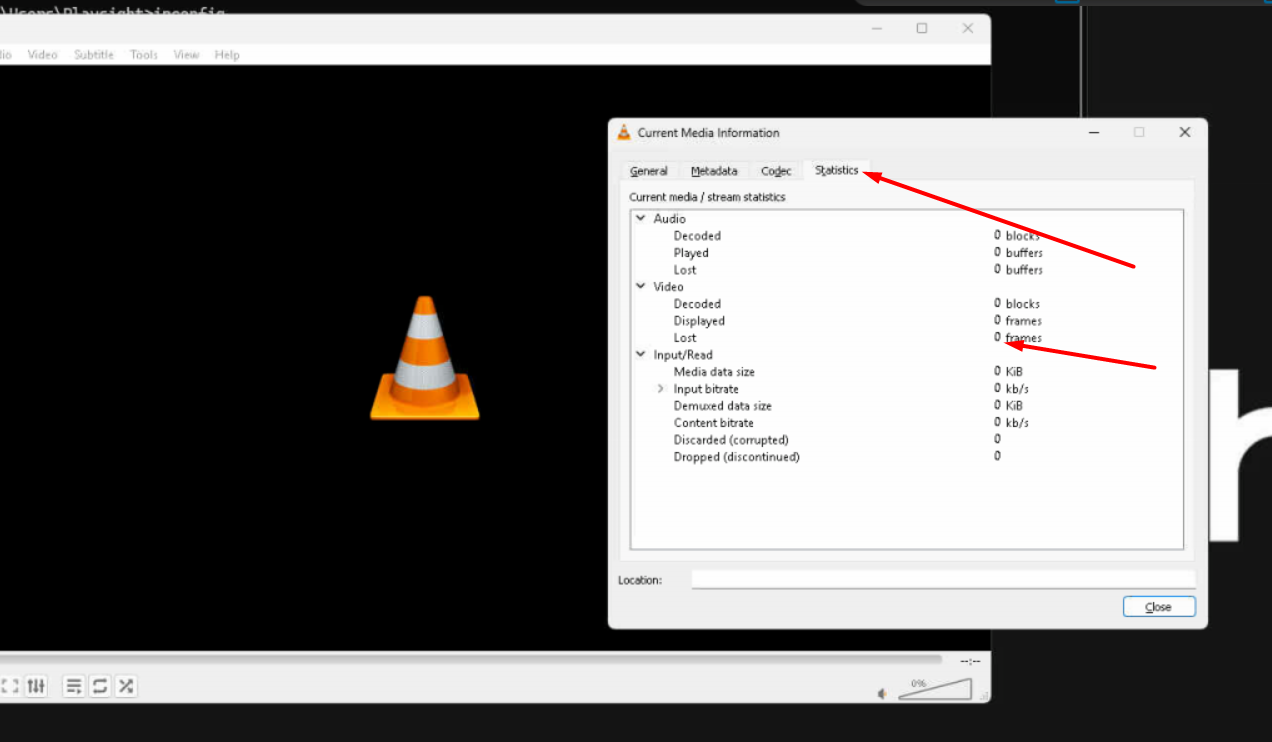
2.1. Make sure cameras are not losing frames (test with VLC locally) ______
Open the camera feed in the VLC, press Ctrl+J -> Stats - Lost frames
2.2. All camera settings are correct and according to latest camera settings document on dropbox (Bitrate, Compression, FPS, Shutter and exposure etc) _____https://www.dropbox.com/scl/fi/mw9ezddy8az1o8thg6m9y/Camera-settings.pptx?rlkey=ht1zrwja3kil3m3oqzwqdkxbh&e=1&dl=0
2.3. All cameras have the latest approved firmware – check only in case cameras were shipped outside Israel HQ _____
2.4. FOVs are good and based on our guidelines, nothing is blocking or interfering with the view ______
2.5. FOV is approved for highlights (tennis\padel\pickleball) _____
2.6. All cameras shortcuts are added to Chrome _____
2.7. Sound level and microphones are all connected tested and confirmed _____
3. QR mobile session and Instant Replay ______
3.1. All QR’s are working (tested through the mobile app) _____
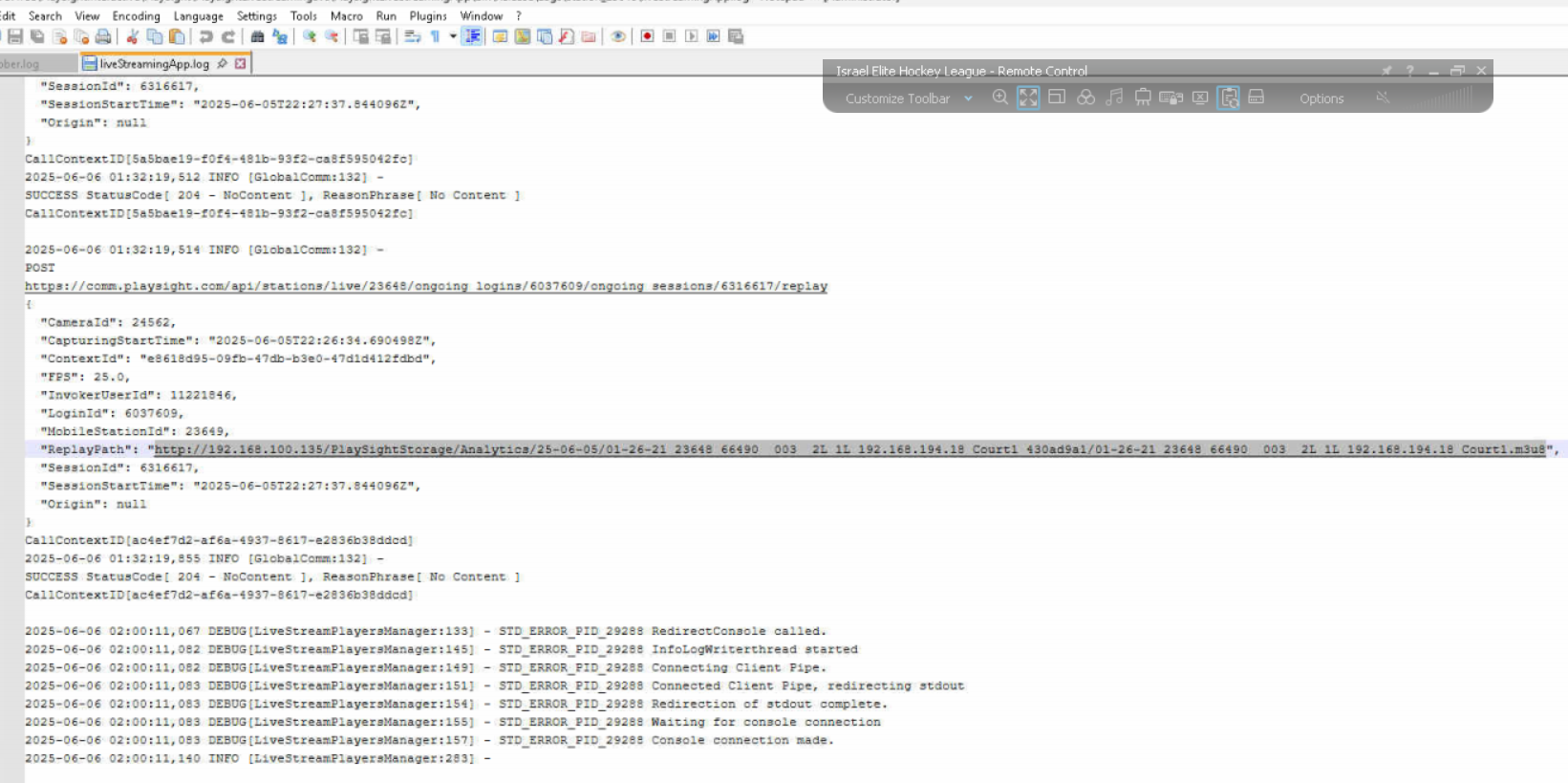
3.2. IIS configured and working ______
Add facility role 14 and press instant replay. Go to the server and find the ReplayPath in the livestreaming logs and open this link in the VLC. Configure the IIS if the link does not play. Delete role 14 after testing
3.3. SSID updated on DB ______ Just add the default Wifi SSID and pwd
PlaySIghtAP and ******
3.4. Instant Replay Trigger tested ______
4. Database
5. All facility information is updated and correct (Name, Location, technical Desc) _____
6. Internet upload and download speed was tested and updated in the facility table _____
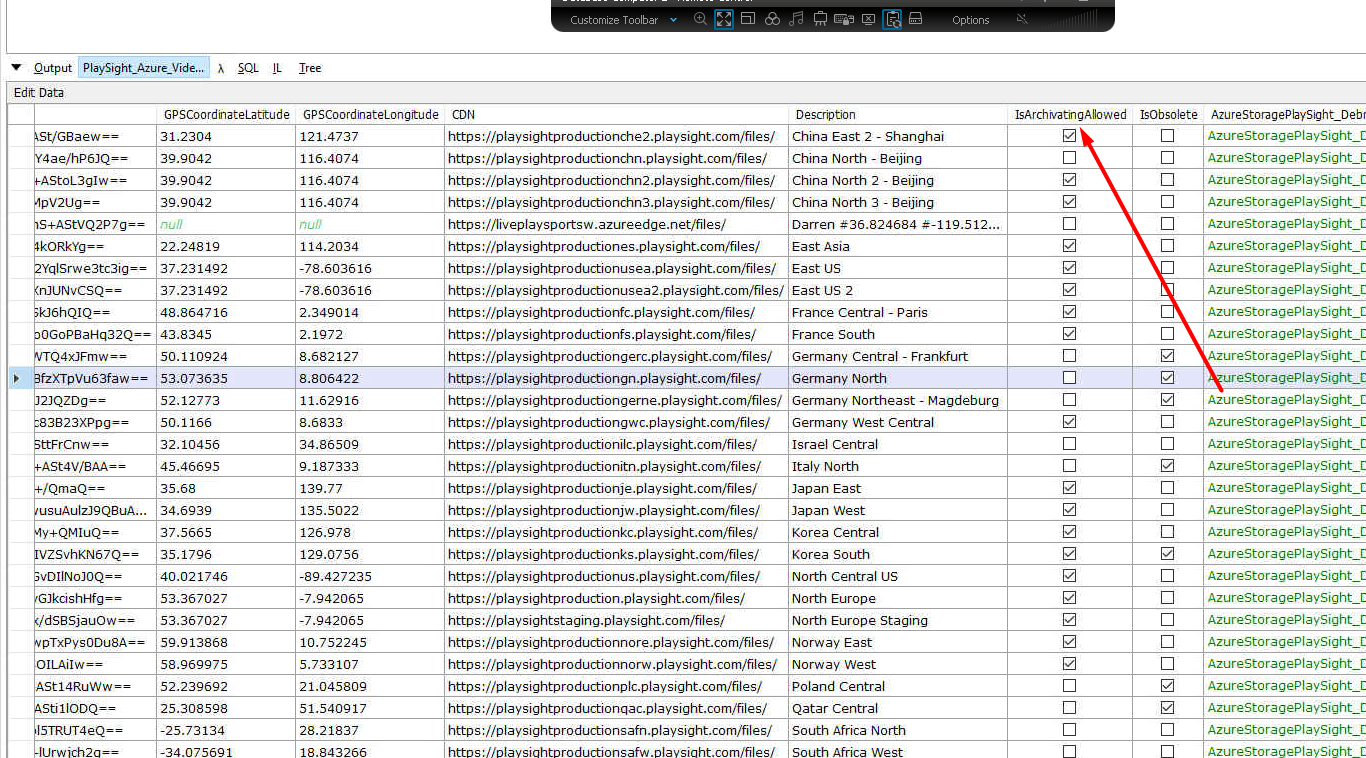
7. Azure blob is configured according to Azure upload test results _____
Run this test https://azurespeedtest.azurewebsites.net/ via the Chrome on the server and make sure you put the Azure account with IsArchivatingallowed
8. Livestream bitrate is set according to the available latency tests (ping) and command line tests _____
Ping the Ngnix example: ping psnginx-usa-losangeles-01.playsight.com -t
Bitrate guideline for Multisports:
- If the ping is ≤ 30 ms, set the bitrate to 4000 kbps.
- If the ping is > 30 ms, set the bitrate to 3000 kbps.
Bitrate for tennis https://www.dropbox.com/scl/fi/bx131q1q52h5cqmsbq9wa/ApprovedNew.xlsx?rlkey=j70khbpjd8cypotfnrvn4u6yt&e=2&st=6fpb7007&dl=0
9. Camera IP’s are set _____
10. Microphone and Sound delay are tested and updated _____
Update delay according to this doc https://www.dropbox.com/scl/fi/m73q9e7h3chhjgyromfr1/AutoDirectorHardw
11. Overlay settings are correct (IP, delay, FPS, position and scale) _____
https://www.dropbox.com/scl/fi/bx131q1q52h5cqmsbq9wa/ApprovedNew.xlsx?rlkey=j70khbpjd8cypotfnrvn4u6yt&e=2&st=6fpb7007&dl=0
5. PlaySight Server
5.1. Make sure the that the latest version is installed – version number ___________
5.2. StationConfig is configured correctly (Add a copy to the freshDesk) _____ ??????
5.3. Application loads and runs without any errors: _____
5.3.1. All relevant logs have no errors and no frame compensation entries _____
5.3.2. No errors in event viewer _____
5.4. 3HR Admin Test session completed successfully, all videos are uploaded successfully _____
5.5. 1HR QR Test session completed successfully, all videos are uploaded successfully _____
5.6. Timezone is set according to physical location and all NTP settings are correct _____
5.7. Computer background is set to PlaySight (Under c:\themes) _____
5.8. PlaySightLoaderApp.exe is in Startup folder _____
5.9. Stitching, Calibration done and tested (with\without players oncourt? Mark the answer with marker) _____
5.10. All relevant supporting application are up to date with latest versions _____
5.11. Automated Highlights are added and calibrated for racket sports (Tennis\Padel\Pickleball) _____
6. Camera settings _____ probably we can delete all steps below and just leave. All cameras are set according to the document https://www.dropbox.com/scl/fi/mw9ezddy8az1o8thg6m9y/Camera-settings.pptx?rlkey=ht1zrwja3kil3m3oqzwqdkxbh&e=1&dl=0 . As well you can check step 2.2
Bitrate:
6.1. Axis 4K – Zipstream turned off, maximum bitrate set to 10000 _____
6.2. Axis Dome – maximum bitrate set to 2048 – 3996 _____
6.3. Axis RIG – ZipStream is set to low, maximum bitrate 50000 _____
6.4. Hikvision – configured to 16MBPS _____
7. Resolution:
7.1. ST – 4K (or 8K for Hikvision PanoVU) _____
7.2. Dome – 1080 _____
7.3. SB – 720 _____
8. Exposure:
8.1. Axis cameras – 1/120 _____
8.2. Dome cameras – 1/100 _____
8.3. Hikvision – 1/75 _____
9. Compression: _____
9.1. Axis – 30 _____
10. FPS: _____
10.1. All cameras are set to 60fps (in Americas NTC) or 50fps (ROW – PAL) _____
10.2. Scoreboard camera is set to 15FPS (OCR), 25FPS (PIP) _____
11. Extras
11.1. Playsight Logo is added to the camera\video _____
11.2. Customer Logo is added to the camera\video _____
11.3. Installation photos are uploaded to dropbox _____
11.4. Add all relevant information to FreshDesk installation ticket and summarize the installation, add notes and remarks for future reference _____